
How to set up automated meeting prep with Power BI and Dynamics integration in Demodesk
Build an AI Crew agent that pulls calendar, transcripts, Dynamics CRM notes, and Power BI data into automated meeting prep summaries for field reps.

What and why
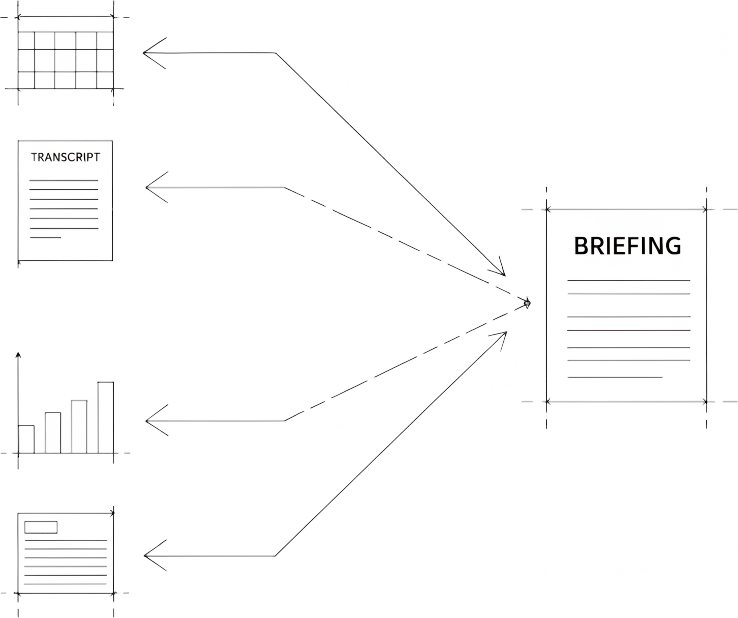
This guide walks you through building a custom AI Crew agent that prepares your field reps for external meetings automatically. The agent pulls today's calendar appointments, searches past call transcripts, queries customer notes from Microsoft Dynamics, and layers in revenue data from Power BI — then delivers a single prep brief before the rep walks into the meeting.
Reps stop spending 30+ minutes per visit digging through CRM tabs and dashboards. One summary, one click, one source of truth.
Who this is for
Field sales teams running Microsoft Dynamics 365 and Power BI who want to give reps prep on the road without adding admin work.
Prerequisites
- Demodesk Coaching & AI plan (any tier with AI Crew access)
- Microsoft Dynamics 365 connected as your CRM
- Power BI workspace with the reports you want the agent to query
- Outlook or Office 365 calendar connected to Demodesk
- At least 30 days of recorded calls in Demodesk so the agent has transcript history to search
- Admin access to configure integrations in Demodesk settings
Steps
- Connect Dynamics 365 to Demodesk — Go to Settings > Integrations > CRM and select Microsoft Dynamics. Map your account, contact, and opportunity objects so the agent can pull customer notes. Verify the connection by opening any past meeting in Demodesk and confirming the Dynamics account appears in the right-hand panel.
- Connect Power BI as a data source — In Settings > Integrations, add Power BI. Authenticate with the workspace that hosts your revenue and customer reports. If Power BI is not in the native integration list, use the public API or Make to expose the specific reports you need as endpoints the agent can query.
- Create the agent in AI Crew — Open the Home sidebar, expand AI Crew, and click + to open Add to your Crew. Choose Build a custom agent.
- Describe the task in natural language — In the AI Agent Builder, describe what you want: “Every weekday morning at 6 AM, look at my external meetings for the day. For each meeting, pull the account from Dynamics, search Demodesk transcripts for the last three conversations with that account, query the customer revenue report in Power BI, and write a one-page prep brief covering: open tasks, last conversation summary, current revenue and pipeline, suggested talking points.” The AI Agent Builder reads this and sets up the connections automatically.
- Connect the four tools to the agent — Confirm the agent has access to: Calendar (Outlook), Demodesk Meetings (for transcripts), Microsoft Dynamics (for account notes and tasks), and Power BI (for revenue data). The builder shows each connection with a green check when authenticated.
- Set the trigger and schedule — Choose Scheduled run and set the time. For field reps starting their day in the car, 6:00 AM local time delivers the brief before they leave home. You can also set Trigger on calendar event so the brief generates 60 minutes before each external meeting.
- Choose how the brief is delivered — Pick one or combine: email to the rep, push notification to the Demodesk Mobile App, or Teams message. For field reps, the mobile app push drives the highest adoption — they tap once, the brief opens, no laptop needed.
- Add the single-click query interface — Inside the agent settings, enable Ask the agent. This gives the rep a chat box on mobile and desktop where they can type or speak a question like “What did we discuss with Müller last time?” and get an answer drawn from the same Dynamics, transcript, and Power BI sources. No need to open three tabs.
- Run a test on one rep — Assign the agent to one field rep, a power user. Let it run for one full sales week. Check whether the brief content matches what the rep would have prepared manually. Adjust the prompt in the AI Agent Builder if specific data points are missing.
- Roll out to the team — Once the brief is accurate, share the agent with the full field team via AI Crew > Share. Each rep inherits the same logic but sees their own calendar, accounts, and Power BI data.
Tips
- Start with one meeting type. A prep agent that handles new-customer visits well beats one that tries to handle every meeting and gets each one half-right.
- Use custom vocabulary for product names. In Settings > AI Settings, add product names, regional terms, and brand names (up to 120 characters) so the transcript search inside the agent picks them up correctly.
- Bookmark important prep briefs. Bookmarked recordings and reports are excluded from auto-deletion, so historically useful prep briefs stay accessible for coaching.
- Combine with the Demodesk Mobile App for voice capture. After the meeting, the rep speaks notes into the app. The next agent run picks up those notes and feeds them into the next brief.
- Watch the agent run count. Each scheduled brief consumes one AI Crew run. A team of 20 reps with daily briefs uses roughly 400 runs per month — within the Starter tier (1,000 runs included). High-frequency triggers may push you to the Growth tier (5,000 runs, EUR 299/month).
Related skills and agents
- AI Sales Assistant — handles the post-meeting half of this workflow: transcription, summaries, automatic CRM sync to Dynamics
- AI CRM Concierge — keeps Dynamics fields clean and complete with human-in-the-loop approval before any data is written back
- Marketplace > Collections > Field Sales — browse pre-built agents for territory planning, route optimization, and visit reports
- AI Agent Builder — the core tool for creating custom autonomous agents like the one in this guide