How to set up AI CRM Concierge for HubSpot custom properties with user group rules
Set up Demodesk's AI CRM Concierge to auto-fill HubSpot custom properties for Contact and Meeting objects, scoped to specific user groups.

What and why
This guide shows you how to configure Demodesk's AI CRM Concierge to auto-update specific HubSpot properties on Contact and Meeting objects, scoped to a defined user group and external meetings only. The fastest way to keep your CRM clean without touching internal calls or exposing the automation to reps who aren't in the pilot.
Who this is for
Customer Success and RevOps leads running a Demodesk pilot in HubSpot who want the AI to fill custom properties — Meeting Outcome, Nutzungsmotive, onboarding fields — for a defined test group before rolling out company-wide.
Prerequisites
- Demodesk workspace with Coaching & AI plan
- HubSpot connected as your CRM (Settings → Integrations)
- Admin permissions in Demodesk
- List of HubSpot custom properties you want the AI to fill (Contact and Meeting objects)
- Consent and recording rules approved by Legal (required for GDPR/DACH teams)
Steps
1. Create a dedicated user group for the pilot
Go to Settings → User Groups → Create Group. Name it something clear like CSM-C&AI-Test so you can distinguish the pilot cohort from the rest of the company. Add the CSMs or reps who will run the trial.
Scoping AI CRM Concierge to a user group is what lets you pilot without risk. The AI only acts on meetings owned by members of this group.
2. Open AI CRM Concierge and start a new rule
Go to Agents → AI CRM Concierge → Create Automation.
Name the rule to match the pilot — for example, CSM Onboarding — Contact + Meeting. You'll create one rule per HubSpot object.
3. Restrict the rule to external meetings only
In the trigger conditions, set Meeting type = External. This keeps the AI off internal syncs, 1:1s, and team standups — the most common source of noise when RevOps first turns on CRM automation.
4. Scope the rule to the pilot user group
Under Applies to, select the CSM-C&AI-Test group you created in Step 1. Everyone outside this group is unaffected. Iterate on the setup without blast radius.
5. Select the HubSpot object: Contact
Choose Contact as the target object. AI CRM Concierge surfaces every property on the HubSpot Contact object — standard and custom.
Pick the custom properties you want the AI to fill. For Gina's pilot, that included:
- Meeting Outcome — what happened on the call
- Nutzungsmotive (usage motives) — why the customer is on the platform
- Onboarding step fields — which of the five onboarding steps were covered
For each property, review the AI-suggested description. If your field label is ambiguous — Nutzungsmotive without context, for example — add a one-line description so the AI knows what to extract from the transcript.
6. Set update-only mode
Toggle Update existing records only (do not create new records).
This is critical during a pilot. Without update-only mode, the AI can create duplicate Contact or Meeting records when it can't match a participant to an existing HubSpot entry. Update-only keeps the pilot clean: if there's no match, the AI skips the update rather than polluting the CRM.
7. Create a second rule for the Meeting object
Repeat Steps 2–6 for the Meeting object in HubSpot. Same user group, same external-meetings-only condition, same update-only mode.
Meeting objects are where you'll store call summaries, next steps, and outcome-level fields. Contact objects are where you store longitudinal data about the person — usage motives, blockers, onboarding progress.
8. Enable human-in-the-loop review
Before the AI pushes anything to HubSpot, the rep sees a preview inside Demodesk with proposed field updates. They can edit via AI chat, approve, or reject.
Keep this on for the pilot. After 10–20 meetings, you'll have enough data to decide whether to move to auto-push.
9. Run a test call and verify
Have one CSM in the pilot group run a real or simulated external meeting. After the call, check:
- Does the summary appear in Demodesk?
- Are the proposed HubSpot updates showing the right fields?
- Does the deal and contact matching resolve correctly?
- Are you seeing only Contact and Meeting objects — no Deal updates you didn't configure?
If a field fills incorrectly, refine the property description in the rule and re-run.
Tips
- Start narrow, expand later. One user group, two objects, five custom properties. Add Deal object rules and more properties after the pilot validates accuracy.
- Descriptions matter more than field names. HubSpot custom property names are often shorthand. A one-sentence description of what the AI should look for in the transcript beats guessing from the field label.
- Keep update-only mode on during the pilot. Duplicate record cleanup is the top reason CRM automations get switched off. Update-only removes that risk.
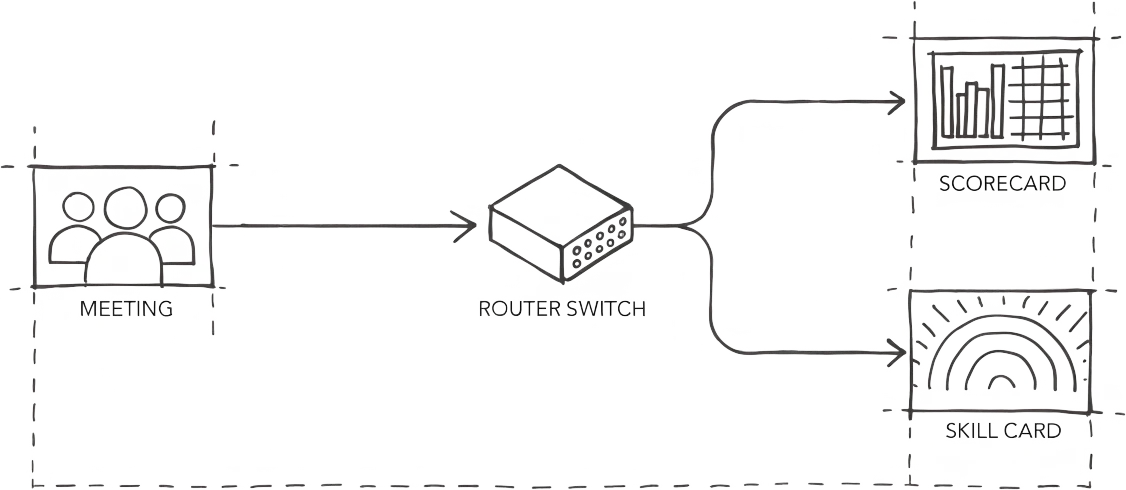
- Pair CRM Concierge with a scorecard. If you're piloting Customer Success workflows, run the General scorecard alongside so you get structured coaching data and clean CRM data from the same call.
- Check your consent flow before the pilot goes live. Demodesk sends a GDPR-compliant consent email automatically. If Legal wants to review the exact language, pull it before your Monday start.