·4 min read
How to set up weighted round-robin routing using Routing Forms in Demodesk
Route bookings to sales reps by weight, not just availability. Set up fair distribution with Demodesk Routing Forms in 5 steps.

Veronika WaxFounder & CEO
What and why
By default, Demodesk meeting types distribute bookings using fast distribution — whoever is available first gets the meeting. If you want bookings distributed by weight instead (so senior reps get more meetings, or new reps get fewer while they ramp), you need a Routing Form with fair distribution enabled. This guide walks you through creating one in five steps.
Who this is for
Sales managers and RevOps admins running a shared inbound booking link across a team of reps who want control over how meetings are distributed, not just first-come-first-served.
Prerequisites
- A Demodesk admin or owner seat
- At least one existing meeting type with multiple hosts assigned (e.g. “PKV Online First Meeting” with 5 reps)
- Weights configured on each host inside the meeting type
- Access to your website CMS to swap out the booking link
Steps
- Open Routing Forms. In the left sidebar, go to Routing Forms and click Create new form.
- Add a routing question. Add at least one question the form can route on — for example, “Which product are you interested in?” with an option like Private health insurance. This question decides which meeting type the booking goes to. You can hide the question from the customer so it runs silently in the background — useful when the form sits behind a single product page and the answer is already known.
- Switch from fast to fair distribution. In the form's distribution settings, change Fast distribution to Fair distribution. This is what makes weights matter. Fast distribution ignores host weights and books the first available rep. Fair distribution respects them.
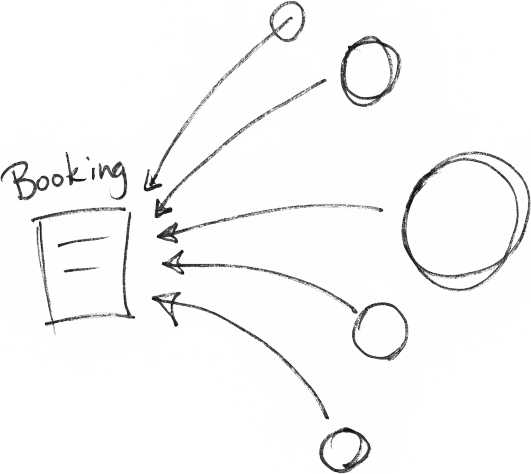
- Add a routing rule to the target meeting type. Click Add rule and define the condition: if answer = “PKV Online” → route to meeting type “First Meeting PKV Online”. The Routing Form sits on top of the meeting type as a routing layer — it doesn't change anything inside it. Double-booking protection and calendar conflict checks stay active.
- Replace the meeting-type link on your website with the Routing Form link. Copy the Routing Form's public URL and swap it in wherever the direct meeting-type link currently lives (product pages, footer, email signatures). New bookings flow through the form, hit the routing rule, and land in the meeting type with fair distribution applied.
Tips
- Use the in-app AI Assistant to help configure the form. If you get stuck, ask the AI Assistant in Demodesk — it can walk you through routing logic and answer setup questions faster than reading docs.
- Hide the routing question when there's only one path. If the form serves one product page, hide the question and pre-answer it in the form logic. The customer sees a normal booking flow; the routing happens in the background.
- Keep meeting types clean. Solve routing at the form level, not inside the meeting type. The meeting type stays a single pool of hosts.
- Test with a booking before you swap the website link. Book yourself through the form end-to-end to confirm the rule fires and the right host gets assigned.
- Weights only work under fair distribution. If bookings still feel random after setup, check step 3 — under fast distribution, weights are ignored.
Related skills and agents
- AI Assistant — answers configuration questions across your Demodesk setup, including routing logic
- Routing Forms Help Center article —
https://help.demodesk.com - Related guide: how to configure meeting types with multiple hosts