How to configure AI CRM Concierge to auto-sync meeting data to Salesforce objects
Configure Demodesk's AI CRM Concierge to auto-sync meeting notes, fields, and tasks to Salesforce. Step-by-step setup for accounts, contacts, events, and notes.

What and why
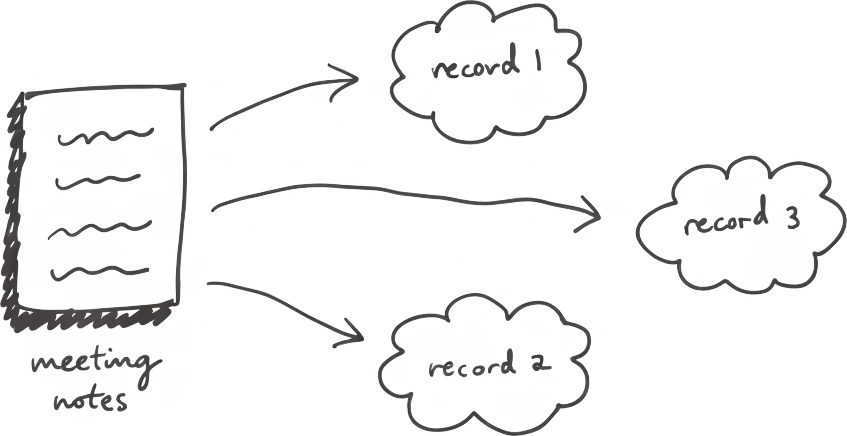
This guide shows you how to set up AI CRM Concierge to push meeting data into the right Salesforce objects — Account, Contact, Event, Task, and Note — with the exact fields your team needs filled. Once configured, every external meeting updates Salesforce without rep effort. Your pipeline stays clean. Reps stop typing notes after calls.
Who this is for
RevOps managers and sales operations leads who own Salesforce hygiene and want a clean CRM without chasing reps for updates.
Prerequisites
- Admin access to your Demodesk workspace
- Salesforce connected under Integrations (with write permissions to the objects you want to sync)
- A clear list of which Salesforce fields you want auto-filled per object
- At least one recorded meeting to test the field mappings against
Steps
1. Disable Magic Mode
Open Agents > Automations > AI CRM Concierge and turn Magic Mode off.
Magic Mode auto-detects which CRM fields to fill based on the conversation. It works well out of the box, but if you want explicit control over which Salesforce fields get updated — and which don't — disable it before configuring object-level rules. With Magic Mode off, you decide every field that syncs.
2. Select Salesforce objects
In the same view, select which Salesforce objects AI CRM Concierge should update:
- Account — company-level data (industry, employee count, use case)
- Contact — person-level data (role, decision-making power, pain points mentioned)
- Event — the meeting itself, logged as an activity
- Task — follow-up actions detected in the call
- Note — the AI-generated meeting summary, attached to the right record
Enable each object you want included. If your team logs follow-ups manually, skip Task.
3. Configure fields per object
For each enabled object, pick the specific Salesforce fields you want AI CRM Concierge to populate.
For Account:
- Industry
- Employee count
- Current tooling
- Primary use case
For Contact:
- Role / seniority
- Decision-making authority
- Pain points discussed
Map each field to a source: the AI extracts the value from the conversation transcript, or you can define a static value or rule. Only enable fields the AI can reliably infer from a sales conversation. Leave closed-loop fields the rep enters manually — deal stage is a judgment call the rep should own, not an AI inference.
4. Set sync triggers
Decide when AI CRM Concierge pushes data to Salesforce:
- Auto-sync — data flows to Salesforce after the meeting ends and the AI summary generates. Zero rep effort.
- Manual sync — the rep reviews proposed updates in the Demodesk meeting view, edits anything inaccurate, and approves the push. Better for teams new to AI CRM filling or with strict data governance requirements.
Most teams start with manual sync for the first two weeks to build confidence in the field mappings, then switch to auto-sync once accuracy is validated.
5. Set meeting audience conditions
Restrict syncing to the right meetings. Set the audience condition to external participants only.
This keeps internal meetings — 1:1s, standups, pipeline reviews — from creating Salesforce noise. Only meetings with at least one external email domain trigger the sync.
Add conditions from there:
- Only meetings tied to an existing Salesforce opportunity
- Only meetings owned by specific teams or users
6. Review pre-sync field mappings
Before AI CRM Concierge pushes anything to Salesforce, the rep sees a preview in the meeting view: every field the AI proposes to update, with the extracted value and the source line from the transcript.
The rep can:
- Accept all proposed updates
- Edit any value via the AI chat (e.g., “Change industry to Manufacturing”)
- Reject specific fields
- Approve the final push
This review step is on by default. Once your team trusts the mappings, you can disable it per object. Most RevOps teams keep review on for Account and Contact, and skip it for Event and Note.
7. Test with one meeting before rolling out
Run a real external meeting through the configured setup. Open it in Demodesk, review the proposed CRM updates, then check Salesforce after sync to confirm fields landed correctly. Adjust mappings before enabling for the full team.
Tips
- Start with 3-5 high-value fields per object. Prove accuracy on a narrow set, then expand.
- Keep deal stage manual. Leave it out of auto-sync. The rep owns that call.
- Use AI chat to correct values before sync. Reps can say “Change the use case to international expansion” and the AI updates the field before pushing.
- Audit weekly for the first month. Pull a sample of synced records and compare against the transcript. Adjust mappings where the AI consistently misses.
- Configure recording retention to match your works council policy. AI CRM Concierge needs the transcript to fill fields, but recordings can be deleted after sync runs. Set retention to 12 hours with bookmark exceptions for coaching review.
Related skills and agents
- AI Assistant — generates the meeting summary AI CRM Concierge uses as the source for Notes
- AI Coach — scores calls against your methodology; pairs well with Contact-level field mapping (e.g., MEDDIC champion identification)
- Marketplace — browse Salesforce-specific skills at marketplace.demodesk.ai/agents